Transform one source video
Use the clip's motion, framing, timing, or performance as the foundation, then describe a new style, subject, environment, or treatment.
This AI video to video generator brings compatible models into one editor. Start with a source video when you want to preserve broad movement, pacing, or composition while changing the style or scene. On supported models, add images, clips, or audio to guide identity, motion, camera direction, and sound.
Use the clip's motion, framing, timing, or performance as the foundation, then describe a new style, subject, environment, or treatment.
Use separate images, videos, and supported audio for identity, appearance, motion, camera direction, or sound when the selected model allows it.
Use Video to Video when a clip already contains the movement you want to guide a new shot. These two edits use the forward-push clip below and change only the lighting sentence.
Seedance 2.0 Mini · one source video · requested 5 seconds, 480P, 16:9 · audio off · 61 credits per edit on October 4, 2026.
Amber sunlight crosses the sofa and right wall, with stronger window-shaped shadows. The broad forward camera movement remains recognizable.
Edit @Video1. Keep the same room, furniture arrangement, camera path and five-second pacing. Change only the lighting to warm late-afternoon sunlight entering through the existing windows, with soft amber highlights and longer shadows. No new objects, no people, no cuts or text.
The windows and room take on cooler, more diffuse light. The candle stays warm and the main furniture arrangement remains recognizable.
Edit @Video1. Keep the same room, furniture arrangement, camera path and five-second pacing. Change only the lighting to cool overcast daylight through the existing windows, with soft diffuse blue-gray light and low-contrast shadows. No new objects, no people, no cuts or text.
Each downloaded result is 864 × 496 pixels and 5.04 seconds long.
Keep the same source clip when comparing light. The two edits retain the broad camera path while changing the atmosphere; small object shapes and reflections also change. For a closer revision, name the specific detail to retain and adjust one lighting instruction at a time.
Try a lighting editStart with source footage for a direct restyle, or give each optional reference a specific role and connect those roles in your prompt.
Upload a short street clip and request a new night-time setting while retaining the forward camera move. Select a model that accepts source video and check its input limits and cost. Play the full result to compare movement, buildings, and transitions. The example illustrates a generated reinterpretation; it does not demonstrate a frame-perfect filter.
Example direction: Use the source for a slow forward camera move; change the street to a night scene with warm shop lighting.Use a clear character image for appearance on a compatible reference model, then describe a new action and setting. Name the face, hair, and clothing to retain and review them across the clip. This example shows a character direction, not an identity lock. Use only references you have permission to upload.
Example direction: Use the image for face, hair, and clothing; show one gentle head turn in a softly lit room.Combine an appearance image with a motion clip when the selected model accepts both. State which input supplies appearance and which supplies the action or pacing. Review body proportions, gestures, and camera behavior throughout the output. Motion guidance can be interpreted or simplified; it does not guarantee identical choreography or timing.
Example direction: Use the video for movement and rhythm, the image for appearance, and keep one continuous shot.On a compatible model, label each supplied image, video, or audio item with the tags shown in the editor. Give each one a role: character, setting, motion, or sound. Describe the final shot and inspect whether those roles carried through. Input types and counts vary, and audio references do not guarantee an exact voice match.
Example direction: Use the first image for the character, the second for the setting, and the clip for a slow camera move.The exact controls depend on the selected model and its supported source media.
Guide a new visual treatment with the source clip's broad framing and movement; compare the full result with the original.
Guide a character's appearance with an image on compatible models; check face, clothing, and proportions across the clip.
Name the action or rhythm to take from a motion reference; identical choreography and timing are not guaranteed.
Play the opening, middle, and closing moments to check identity, texture, transitions, and any generated sound.
Describe a new environment around a referenced subject, then inspect whether its distinctive details remain recognizable.
Use the prompt and exposed model settings to guide action and camera behavior; exact paths and composition can vary.
Start with an idea, a photo, or a clip. Pick what you want to create next.
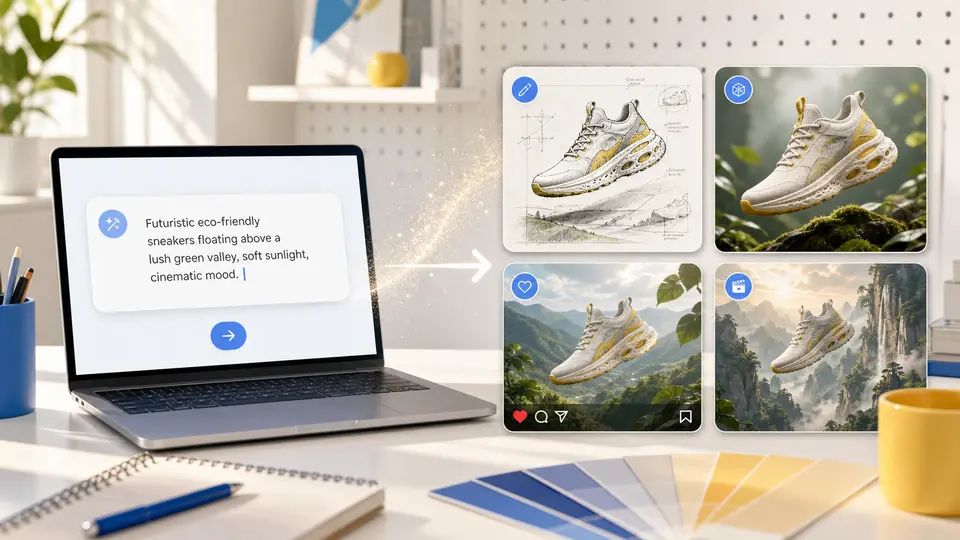
Turn a written idea into a new image, from product concepts to illustrations.
Create an image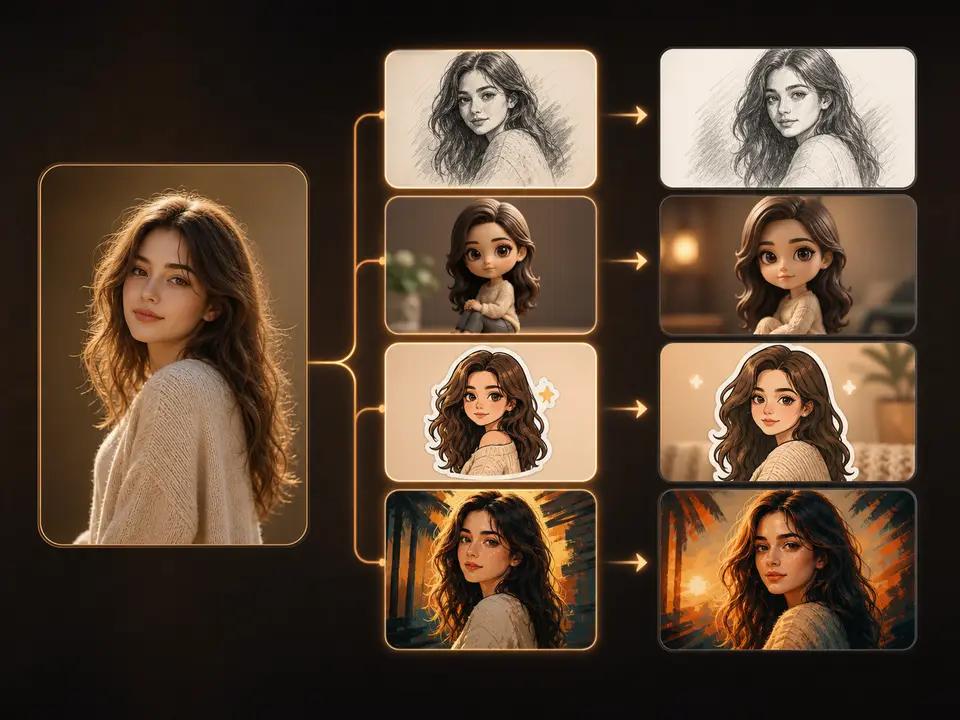
Use your photo to guide a new style, setting, or visual edit.
Edit a photoDescribe a scene, action, and camera movement to create a short clip.
Create a video
Animate a portrait, product photo, or artwork with a motion prompt.
Animate an imageRestyle a clip using its motion and composition as creative guidance.
Back to editorUse source footage when its broad motion, timing, composition, or performance should guide a new result. Available reference inputs, output controls, and credit estimates vary by selected model, so review the editor before each generation.
| Capability | What to expect | Basis |
|---|---|---|
| Primary input | Source footage plus a transformation prompt | Workflow definition |
| Transformation guidance | Broad motion, pacing, composition, or performance can guide the output; it is not a frame-perfect filter | Provider guidance |
| Optional references | Images, additional video, or audio only when the selected model exposes those inputs | Live editor controls |
| Limits and credit estimate | Use the upload validation, output choices, and estimate shown for the current model | Live editor controls |
Common questions about creating and transforming videos with reference media.
Yes. Generate one video for free without logging in or signing up. Text to Video, Image to Video, and Video to Video share this trial. Guest videos use Seedance 2.0 Mini at 480P, up to 5 seconds. Duration and resolution controls require sign-in. Failed generations do not use the free try; further generations require credits.
AI Video to Video creates new footage guided by an uploaded clip and a transformation prompt. Use the source for motion, timing, composition, or performance, then describe the visual change. Select a model that accepts video, check its limits and credit estimate, and review the entire result. The output is a generative interpretation, not a frame-perfect filter.
Yes. Choose a model that accepts source footage, upload a valid clip, and name the change and the details to retain. For example: Keep the forward camera move; change the street to a warmly lit night scene. Compare movement, subject shape, and transitions throughout the result. Generative restyling can also change details you asked to retain.
Choose a sharp, unobstructed image that clearly shows the person, product, or style you want to guide the shot. Use one reference for each distinct role and name those roles with the tags displayed in the editor. Review faces, labels, and colors in the output. A reference guides appearance; it does not guarantee identical identity or products.
A reference clip can guide broad movement, pacing, framing, or performance on models that accept it. State which action or camera behavior matters instead of asking the model to copy everything. Review the full generated clip against the source. Timing, choreography, and individual frames can change; the reference is guidance rather than a locked editing timeline.
Images, video, and audio can be combined only when the selected model exposes those upload types. Choose the model first, check its upload limits, and assign each input a distinct role in the prompt. Inspect the resulting visuals and sound. Audio support does not guarantee voice identity, exact words, or synchronized performance.
Name each reference role first, then describe one main action, setting, camera direction, and the details to retain. For example: Use the image for appearance and the clip for movement; show the character walking through a garden in one slow tracking shot. Use the editor's reference tags and avoid conflicting instructions. Review before refining one direction.
Video to Video uses footage to guide motion or timing; Image to Video starts with a still image and generates new movement. Text to Video starts with a written brief. Choose the workflow by the source that must anchor the shot. All three generate new footage and can change subject details, so inspect the complete output.
Some models accept multiple references; the editor shows the available slots and permitted input types after selection. Give each image, clip, or audio source a different purpose and refer to its displayed tag. Avoid conflicting subjects and directions. More references do not guarantee better consistency, and unsupported files or combinations cannot be submitted.
The selected model determines file types, sizes, duration limits, and reference counts; the uploader validates those requirements. Output duration, resolution, and billable reference media can affect the displayed credit estimate. Check the estimate after adding inputs or changing settings. One video trial is free without login, shared across all video workflows: Seedance 2.0 Mini, 480P, up to 5 seconds. Failed generations restore the trial. Further generations require sign-in and sufficient credits.
Select a secure payment provider to continue.
Sign in with Google or GitHub to generate and access your saved creations.
Create a new account with Google or GitHub to claim them. Unused credits expire 30 days after signup.
By continuing, you agree to the Terms of Service and Privacy Policy.