STEP 01 · Upload
Start with the best scan
Upload a clear scan; keep the untouched original.
Upload a photoFollow the illustrated workflow from upload to review. The shown looks are examples, not guaranteed generations.
Upload a clear scan; keep the untouched original.
Upload a photoRepair damage, revive faded colors, or colorize a monochrome photo.
Choose a directionSAME SOURCE PHOTO
Set the frame and resolution; check the credit cost.
Set the frame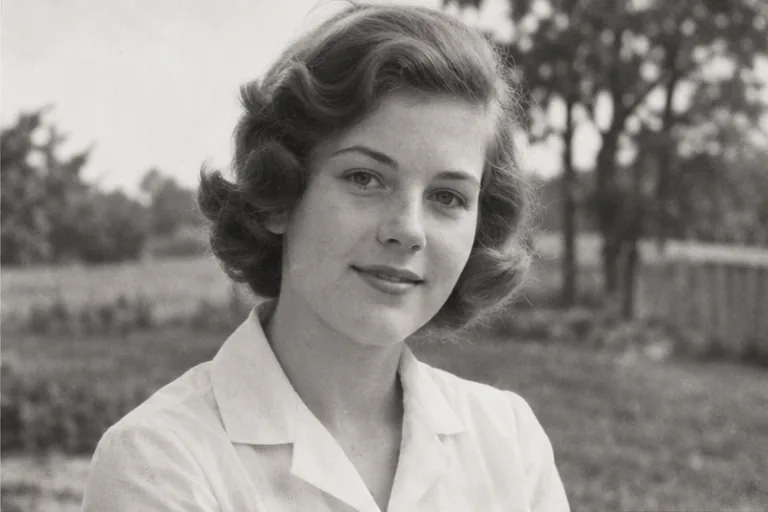
Compare details with the original before saving.
Start editingMatch your photo to three repair goals: light scratches, faded color, or black-and-white colorization. Each source/result pair is a fictional illustration. Keep your untouched scan and compare faces, texture, and tones before saving.
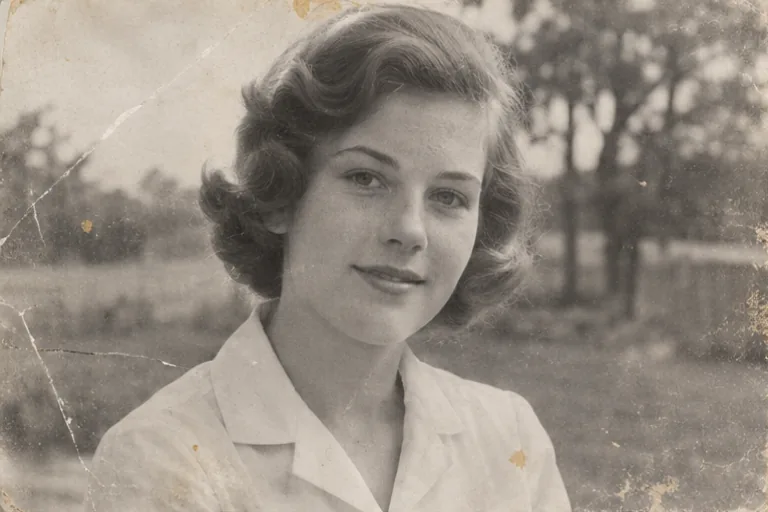
Choose Damage repair for light scratches, small stains, and thin fold marks on an old print. Upload a clear scan and compare the eyes, mouth, clothing, and film grain with the untouched original. AI photo restoration can reduce visible damage, but large tears and missing facial detail may require manual work.
Repair light scratches
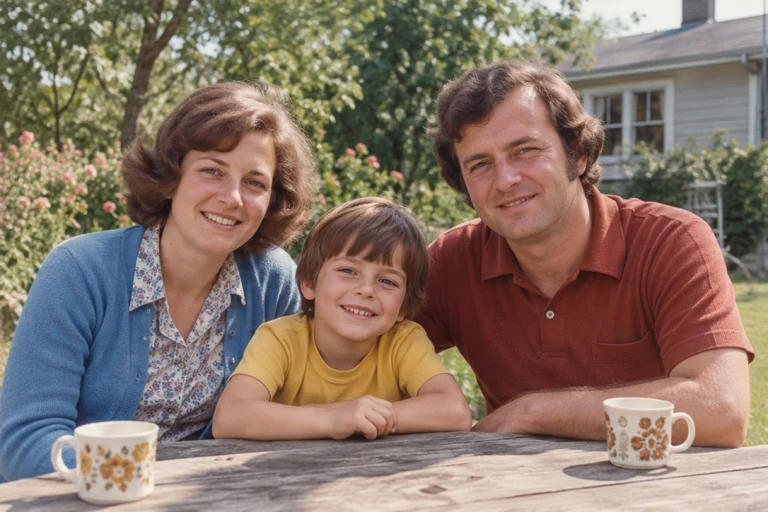
Choose Revive faded colors for an originally colored photo with washed-out tones or an unwanted cast. The direction uses surviving colors rather than adding color to a monochrome image. Check skin tones and known clothing colors against the print. Colors that have disappeared completely cannot be verified from the damaged photo.
Revive a faded color photo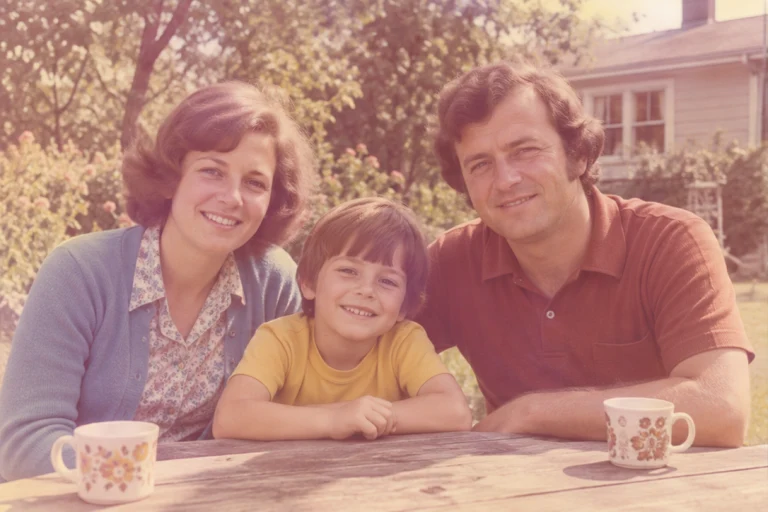
Choose Restore & colorize to explore a color version while reducing light damage. Keep the original scan beside the result and inspect every face. In Custom, describe colors you know, such as the blue dress or brown coat. AI colorization supplies plausible colors; it does not recover verified historical colors.
Explore photo colorization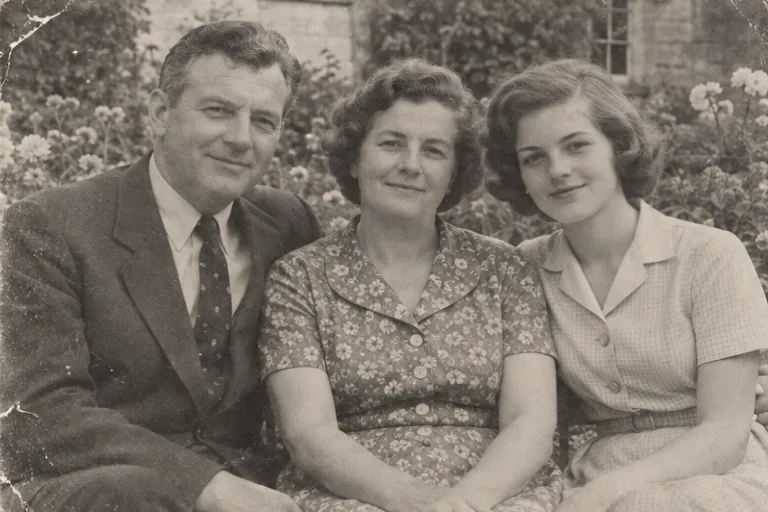
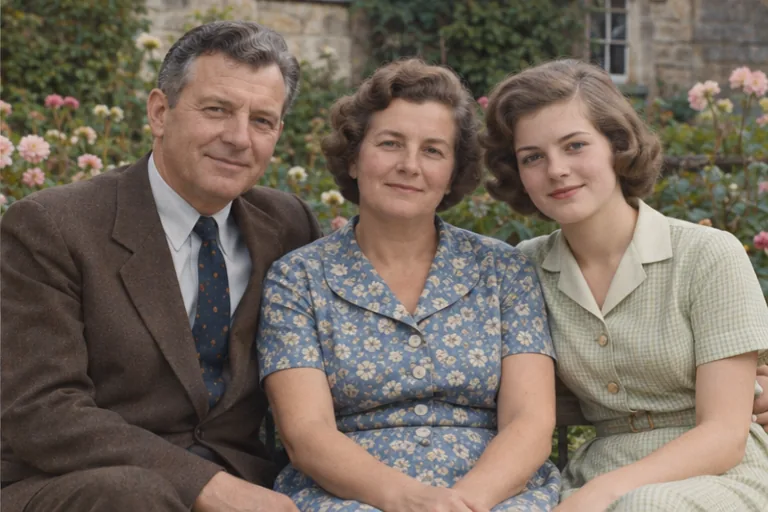
Natural restore asks for a gentle repair while retaining facial structure, expression, and film grain. Upload your clearest scan; in Custom, name distinctive features to keep. Compare the eyes, mouth, and hairline with the original. AI can still alter identity, and there is no face lock. A sharper generated face is not proof of a recovered likeness.
Portrait clarity requests modest improvement to visible facial, hair, and clothing edges while retaining grain and natural texture. Use the original scan rather than a compressed screenshot. Strong blur may leave insufficient detail, so AI can invent a sharper-looking face. A 2K or 4K output does not recover verified information missing from the source.
Damage repair targets light scratches, small stains, and thin fold lines while asking to retain faces, clothing, tones, and grain. Keep an untouched scan for comparison. Large tears, missing faces, and heavily obscured areas can produce guesses. Consider manual restoration when accurate reconstruction matters; this AI workflow cannot guarantee repair of every defect.
Revive faded colors is designed for an originally colored print. It requests reduced fading and color casts using surviving tones, rather than colorizing a monochrome photo. In Custom, name known colors, such as a blue dress. Compare with the original print or other evidence; AI cannot verify pigments or colors that have completely disappeared.
Natural restore keeps the source's monochrome, sepia, or color treatment. Choose Neutral B&W for restrained gray tones, or use Custom to retain a specific sepia finish. Restore & colorize deliberately adds plausible colors to a separate interpretation. Keep the untouched original; generated colors and details do not establish historical accuracy.
A clear scan provides more visible detail for photo restoration. A straight-on phone picture can also be used if the whole print is visible with even light and no glare. Upload JPEG, PNG, or WebP and retain the original file. The editor does not provide a dedicated scanning, perspective-correction, or glare-removal control.
Describe the damage and what should stay. For example: Reduce light scratches and fading; keep the photo black and white, with the same faces, expressions, clothing, background, and film grain. Custom accepts up to 1,000 characters or one tone reference, used separately. The reference guides finish, not missing facial identity or factual color recovery.
You can explore the restoration editor without an account; generation requires sign-in and credits. New accounts receive 40 credits for 30 days. Check the displayed cost before submitting. Failed generation returns credits, while a successfully generated image you dislike still uses them. Another repair attempt is a separate request, so restoration is not unlimited or guaranteed usable.
Choose a source image, give the model one clear direction, and review the result before using it.
Upload a photo
Select a secure payment provider to continue.
Sign in with Google or GitHub to generate and access your saved creations.
Create a new account with Google or GitHub to claim them. Unused credits expire 30 days after signup.
By continuing, you agree to the Terms of Service and Privacy Policy.