STEP 01 · Upload
Start with a clear outfit photo
Upload a well-lit photo that shows your outfit.
Upload a photoFollow the illustrated workflow from upload to review. The shown looks are examples, not guaranteed generations.
Upload a well-lit photo that shows your outfit.
Upload a photoChoose an outfit or describe a look of your own.
Choose a directionSet the frame and resolution, then generate.
Set the frameCompare outfit directions on your own pose before a trip, workday, or event. These images help you choose a style; they do not measure fit or fabric.
Upload a photo that shows your pose and clothing, then choose a ready-made look. A tailored work outfit takes no manual masking or prompt writing to explore. Review the generated hands and garment edges.
Choose an outfit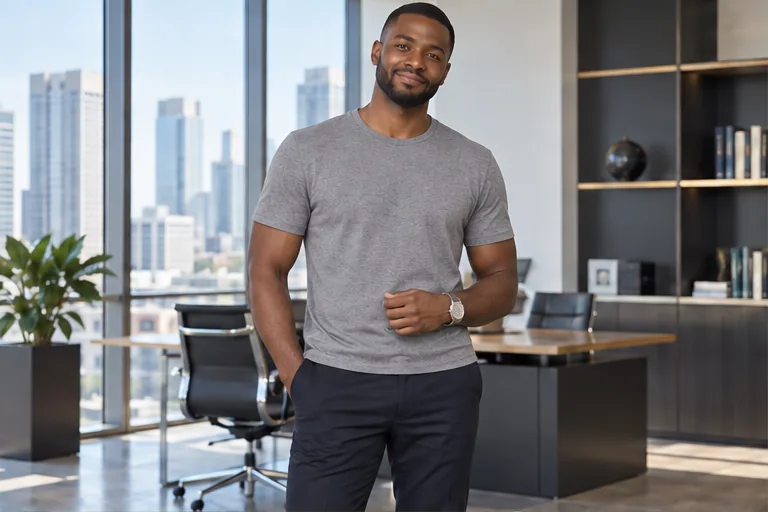

Compare relaxed, formal, evening, and active directions on your own photo. Use Custom when you have a specific style in mind. The image is a visual idea, not a measurement of fit or fabric.
Explore another look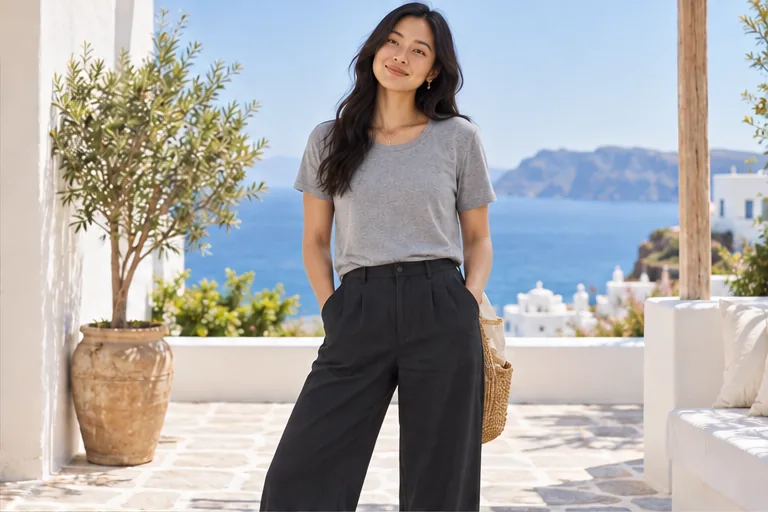
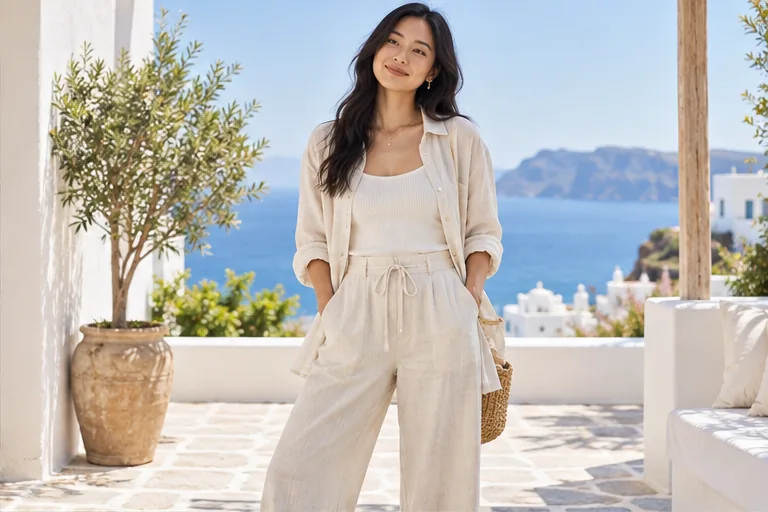
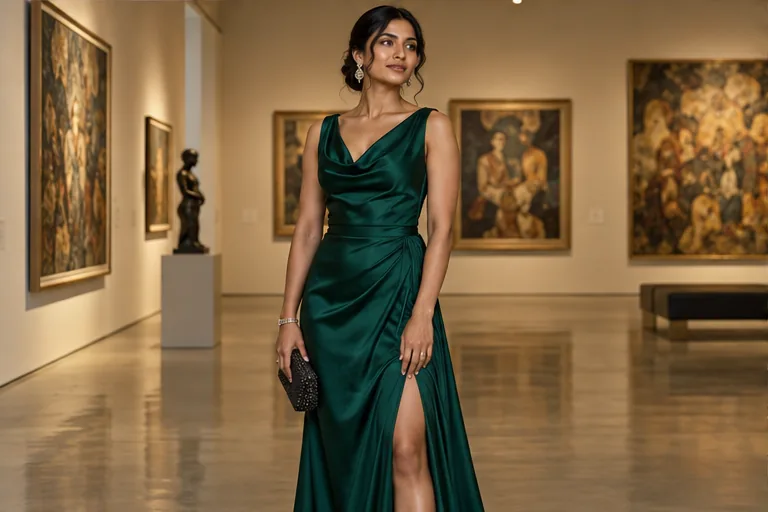
An event outfit is easier to judge when you can see the full silhouette, color, and setting together. Save a favorite preview without an added ImagineScenes watermark, then confirm the real garment's size and material separately.
Create and download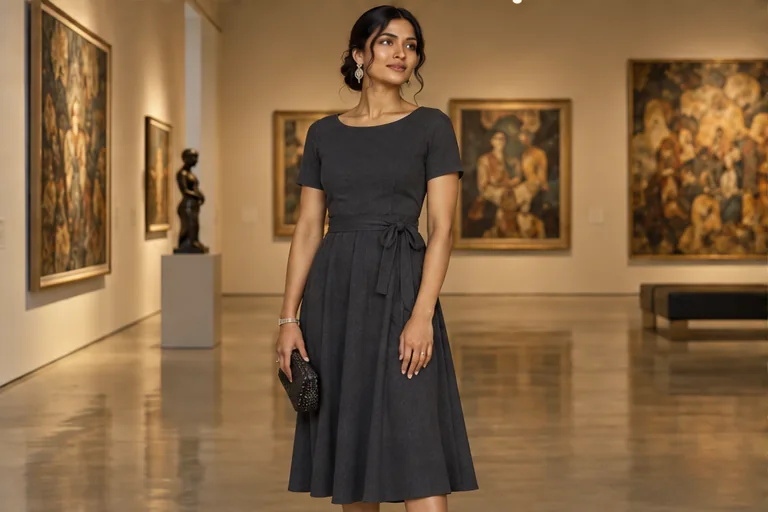
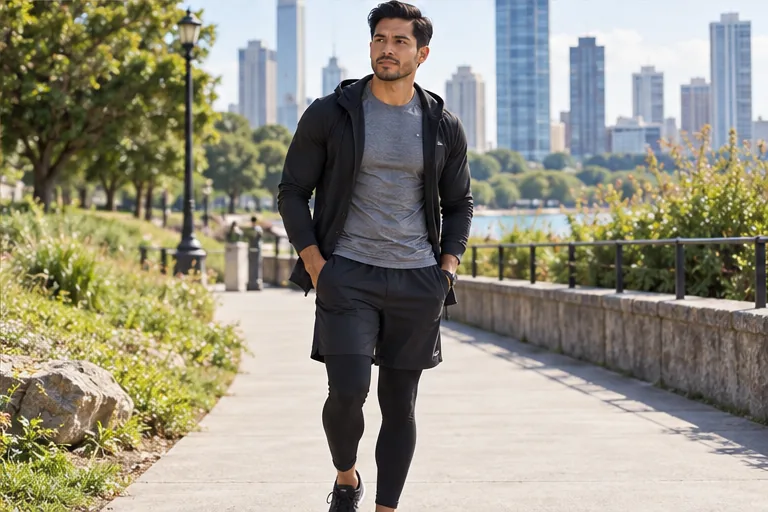
Try an athletic or travel-ready direction when you are deciding between relaxed shapes and more structured outfits. The image shows styling, not movement or fit. New accounts have 40 credits for 30 days; each attempt shows its cost first.
Try an active look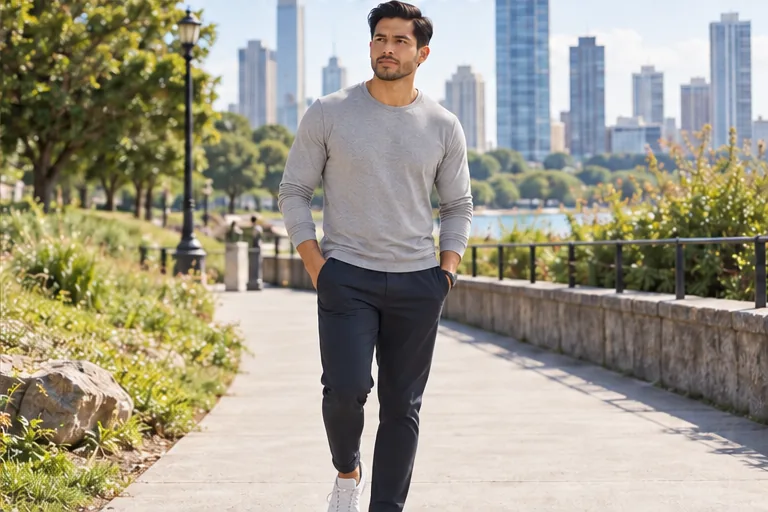
Upload one clear photo of yourself, then choose Men or Women for six practical outfits, or open Custom to write a clothing description or add one outfit reference. Set the aspect ratio and resolution, check the credit cost, and generate one preview. Review it before downloading or finding it in My Creations.
No. Each Men or Women example keeps the same model and studio setting across six outfits so you can compare the clothing. Choosing a preset sends its written direction with your uploaded photo; the example picture is only an illustration. To guide the edit with clothing from a particular image, switch to Custom, choose Use an outfit photo, and upload that image separately.
Yes. Open Custom and use an outfit photo as the second image to guide clothing style, silhouette, color, and fabric direction. The first image remains the person reference. The model may reinterpret details and cannot guarantee an exact reproduction of a retail garment.
In Custom, the editor accepts one direction at a time: a written prompt or one outfit reference. Switching to a reference clears the prompt; switching back removes the reference. Use a prompt when details are easy to describe, or a photo when the visual shape matters most.
No. It is a visual styling preview, not a body measurement or fit simulation. It cannot tell you the size to buy, how a fabric feels, or exactly how a specific item will drape in real life. Check the retailer's size information and the actual garment before purchasing.
Use a sharp, evenly lit image with one person, a visible face, and the garment area you want to change in frame. A front or gentle three-quarter pose with hands away from the clothing is easier to interpret than a heavily cropped, filtered, or obscured photo.
The tool already asks the model to preserve those features, but generated details can still drift. Use a clear source image and name the one garment to replace; in prompt mode, say which features should stay the same. Inspect the face, hands, proportions, and background in each result before sharing it.
Sleeves, necklines, and waistlines are harder when arms cross the body, hands cover the clothing, or the source garment has a very different shape. Try a photo with visible shoulders and arms, and describe the intended sleeve length and neckline. A simpler single-garment edit can help, though no result is guaranteed.
Yes. Name the item and the requested change, such as replacing a hoodie with a blazer or recoloring a shirt navy. Ask to keep the other clothes, face, pose, and background recognizable. The model can still affect nearby details, so compare with the original.
Yes. Keep your source photo and choose another outfit in Men or Women, or open Custom to write a new direction or use a different outfit reference. The editor requests one image per submission; each new request has its own displayed credit cost. Compare saved results in My Creations.
Upload one JPEG, PNG, or WebP source photo and, in reference mode, one outfit image in a supported format. Select an aspect ratio and 1K, 2K, or 4K resolution. The request generates one edited image.
You can explore the editor without signing in. Sign in to generate a preview; the Generate button shows the credit cost for your chosen settings before submission. Download the result or find it later in My Creations.
Choose a source image, give the model one clear direction, and review the result before using it.
Upload a photo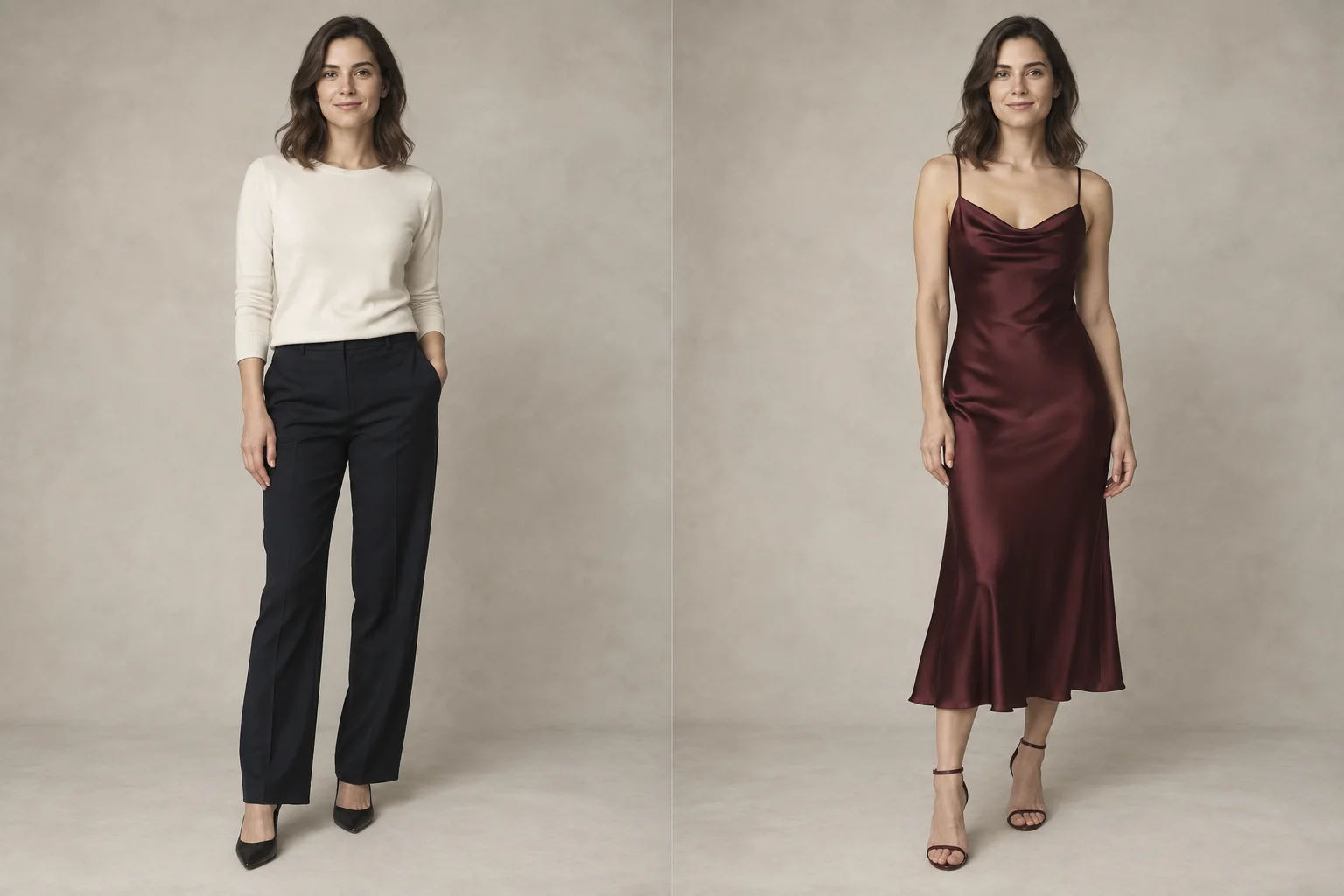
Select a secure payment provider to continue.
Create amazing AI-generated videos and images
Create a new account with Google or GitHub to claim them. Unused credits expire 30 days after signup.
By continuing, you agree to the Terms of Service and Privacy Policy.