ONE CLEAR PORTRAIT
STEP 01 · UPLOAD
Start with your face.
Upload a well-lit portrait with your face and hairline visible.
Upload a portraitUse the same four steps you see in the editor above.
Upload a well-lit portrait with your face and hairline visible.
Upload a portraitSet the frame, check credits, then generate.
Set the frameCompare the result, then download it or open My Creations.
Try this hairstyleCompare useful cut shapes on your portrait, then save the clearest reference for a conversation with your stylist. The preview cannot measure your real curl pattern, density, or upkeep.
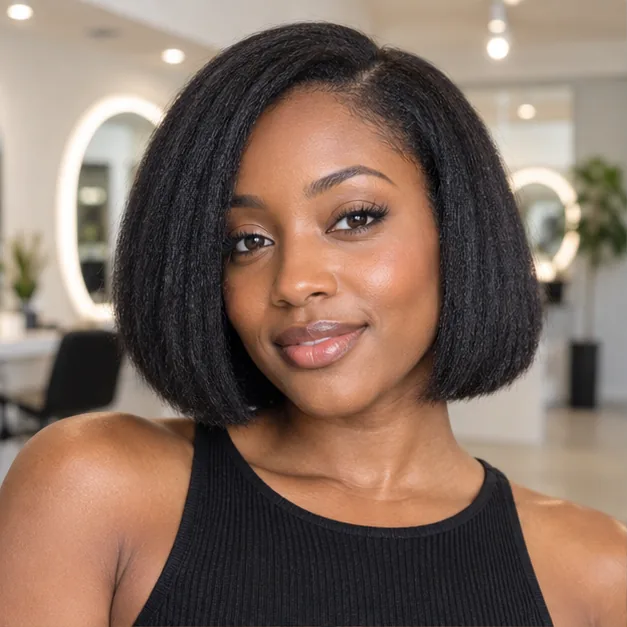
A bob can change how your face is framed, even when the color stays familiar. Preview the silhouette on your own portrait before committing to the length, then bring a favorite image to your stylist for a realistic cut plan.
Preview shorter cuts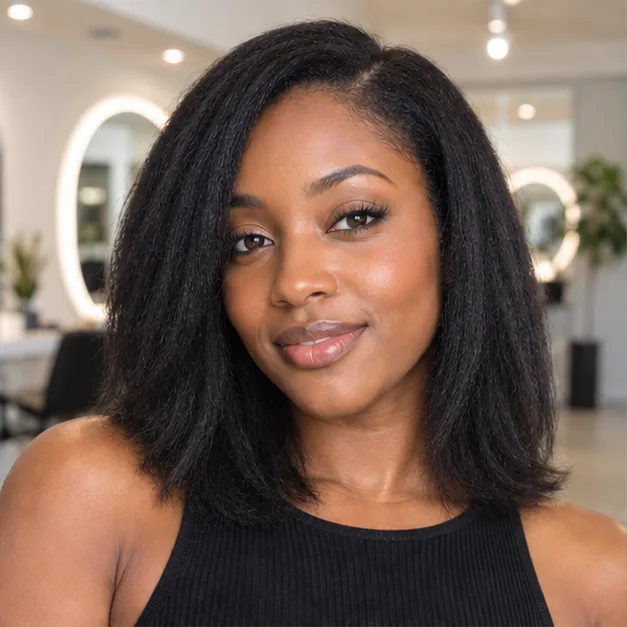
Try a short textured cut or another low-maintenance shape without editing hair strand by strand. The preview shows a visual direction; real growth pattern, density, and styling time still affect the result at the salon.
Browse haircut ideas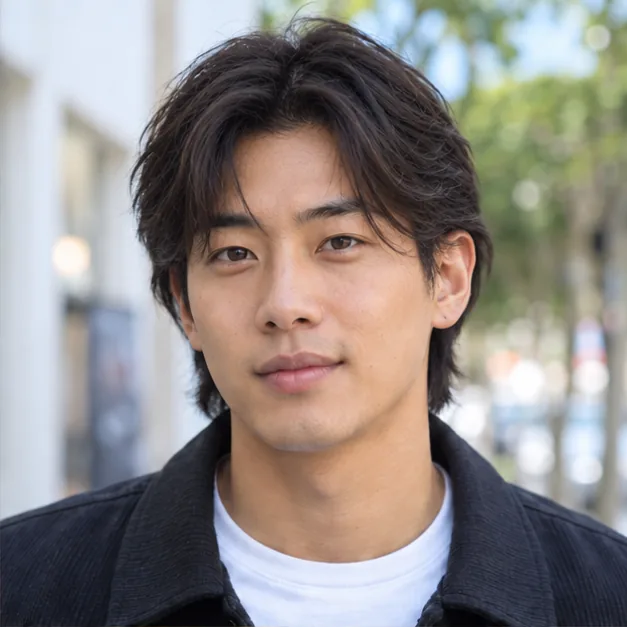
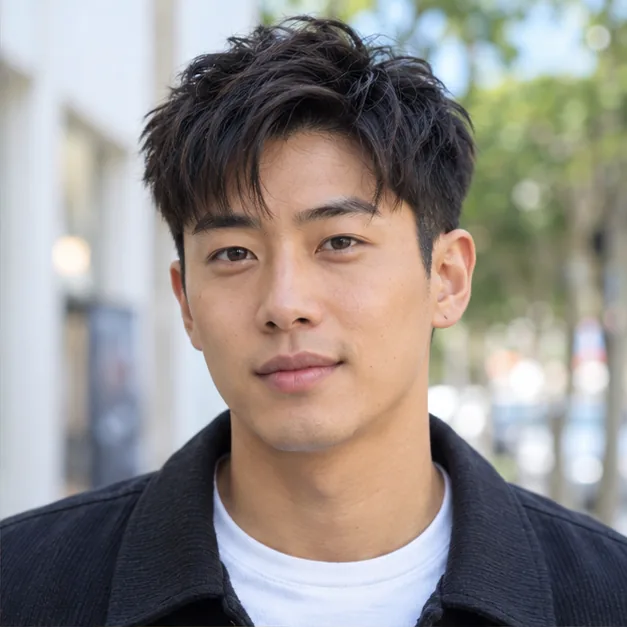
In Custom, describe shoulder length, face-framing layers, bangs, or color, or use one haircut photo as a style reference. Your portrait supplies the person; the reference guides the hair rather than replacing your face.
Describe a haircut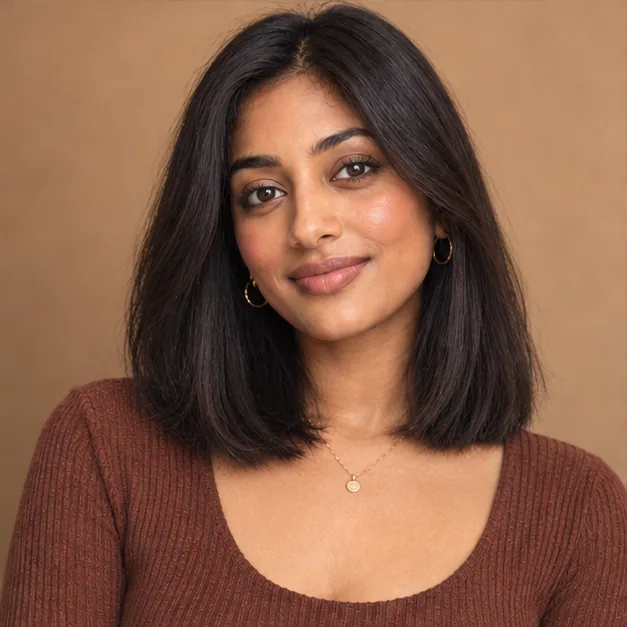
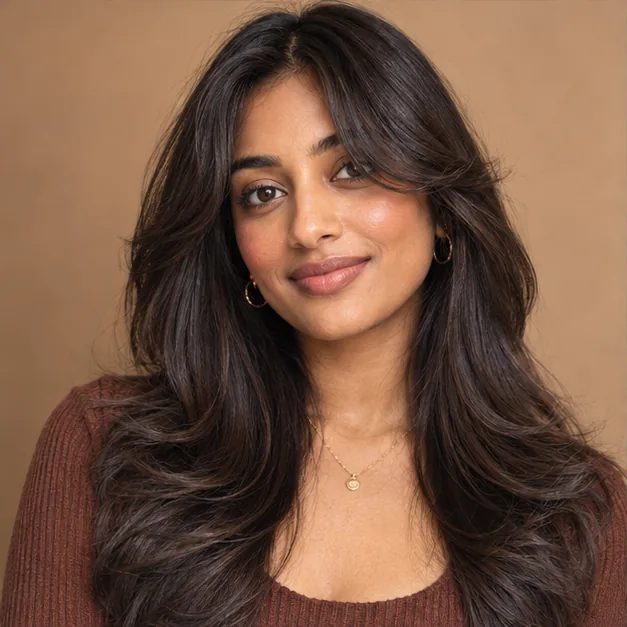
Download the preview without an added ImagineScenes watermark and show the shape you like at your appointment. New accounts receive 40 credits for 30 days; the editor displays each generation's cost before you try another look.
Try a new hairstyle

Upload one clear portrait, choose a haircut from Men or Women, or open Custom to describe a look or add one haircut reference photo. Generate a preview to compare the idea on your own face before your salon visit.
Use a recent, front-facing photo with one visible face, even light, and your hairline in frame. Avoid hats, heavy filters, and hair covering your face; the portrait is the person reference for the result.
Yes. Try a fringe, bob, pixie, buzz cut, or another starting look before you commit to the length. The preview helps you compare shapes, but ask your stylist where the finished cut will fall on your real hair.
Yes. Keep the same portrait and generate separate previews for different presets or Custom directions. Each generation has the credit cost shown in the editor before you submit it.
Yes. In Custom, choose the haircut photo option and upload one style reference. Your own portrait remains the person reference; the second photo guides the haircut rather than replacing your face.
Choose one direction at a time. Write a description when you can name the length, layers, fringe, texture, and color; use a haircut photo when its shape is easier to show than to describe.
The workflow asks the model to preserve the person in your portrait and change the hair. AI generation can still alter small facial details, so inspect the result before you save or share it.
It shows a visual try-on, not a face-shape score or a professional recommendation. Compare a few lengths and silhouettes on your photo, then ask a stylist what will work with your hair and the look you prefer.
A preview can show a haircut idea but cannot measure your real density, curl pattern, growth direction, or how you style your hair. Ask your stylist how those details may change the cut's shape and upkeep.
No. AI creates an illustrative image, not a guarantee of the salon result. Your natural texture, growth pattern, styling routine, and your stylist's technique can change how the finished cut looks.
Save your favorite result and point to the exact details you want: overall length, where layers begin, fringe length, side shape, and the finish. Tell your stylist which parts you do not want shortened and ask how much daily styling the look needs.
After generating, download a favorite result or open My Creations to revisit it. You can compare saved options before your appointment and bring the clearest example to your stylist.
Upload one portrait, choose a cut, and save a preview you can discuss with your stylist.
Try a hairstyle on my photoSelect a secure payment provider to continue.
Create amazing AI-generated videos and images
Create a new account with Google or GitHub to claim them. Unused credits expire 30 days after signup.
By continuing, you agree to the Terms of Service and Privacy Policy.