ONE CLEAR PORTRAIT
STEP 01 · UPLOAD
Start with your own face.
Upload a well-lit portrait with one clear face.
Upload a portraitFollow the four steps shown in the editor above.
Upload a well-lit portrait with one clear face.
Upload a portraitChoose a 90s scene or describe your own in Custom.
Browse 90s scenesSet the frame, check credits, then generate.
Set the frameCheck the result, then download it or open My Creations.
Try a 90s photoChoose the kind of 1990s moment you want to imagine. Preset scenes need no written prompt; Custom can guide the camera feel and setting. Results are illustrative, not real archival photos.
Start with one clear face photo, then choose a studio-style 90s direction. The preset describes the backdrop, flash, and color; you do not need an old camera or manual film editing. Check that the generated face still feels like you.
Browse 90s scenes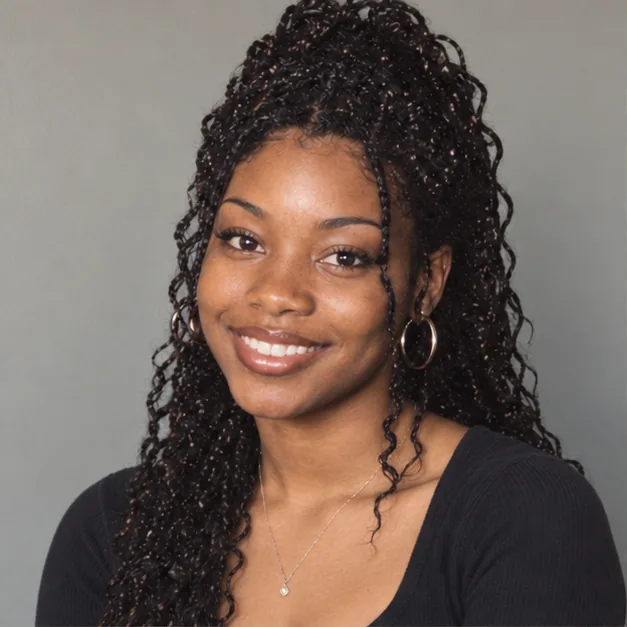
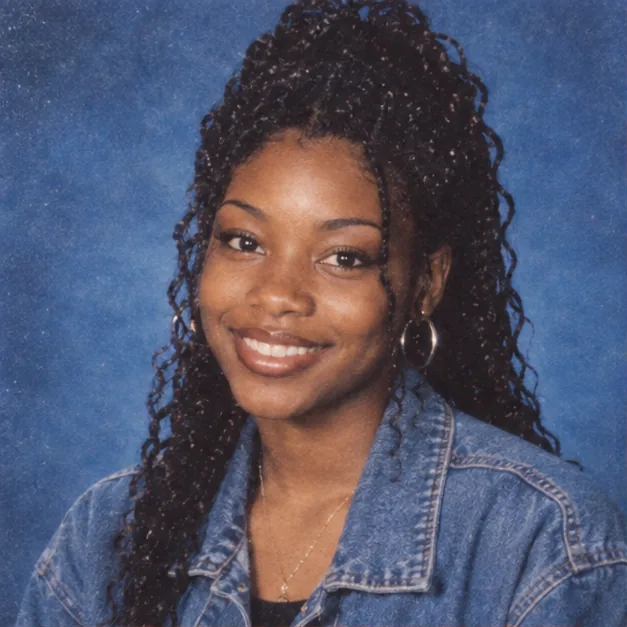
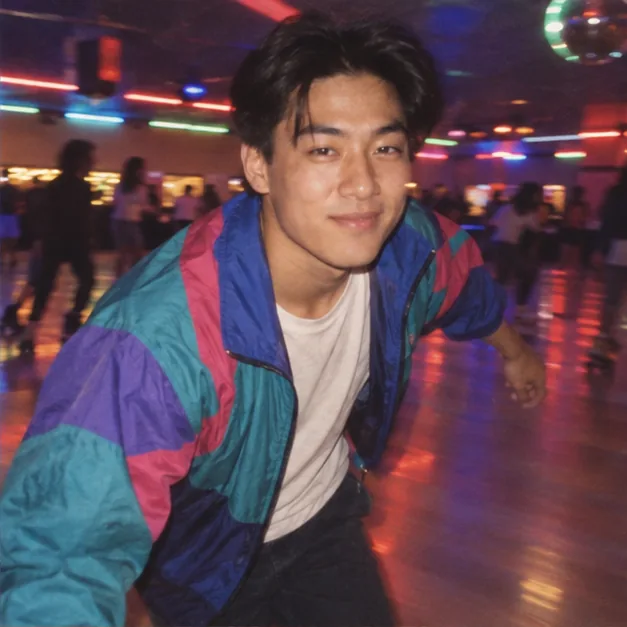
Try the saturated lights of a roller rink or describe a different 90s place in Custom. A scene reference can guide mood, while your uploaded portrait remains the person reference. The result is a new fictional image, not an authentic photo from that decade.
Describe my scene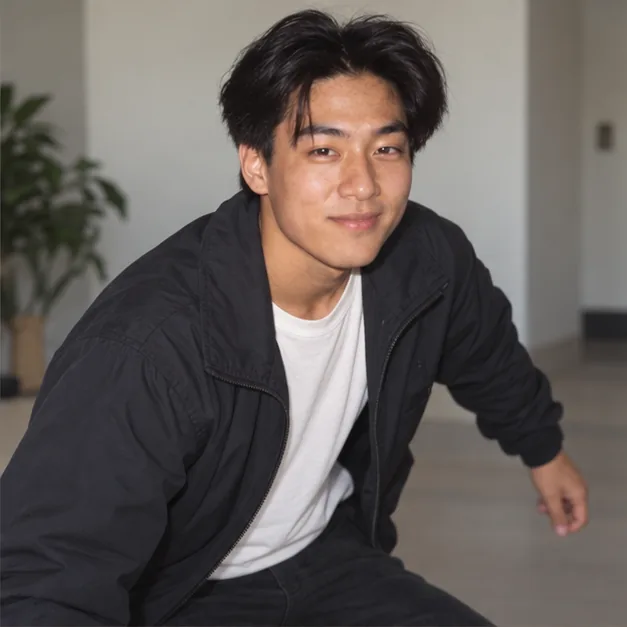
A playful booth-style frame can suit a birthday post, reunion invitation, or personal album. Download a favorite result without an added ImagineScenes watermark, then review clothing, facial details, and era cues before posting.
Create a throwback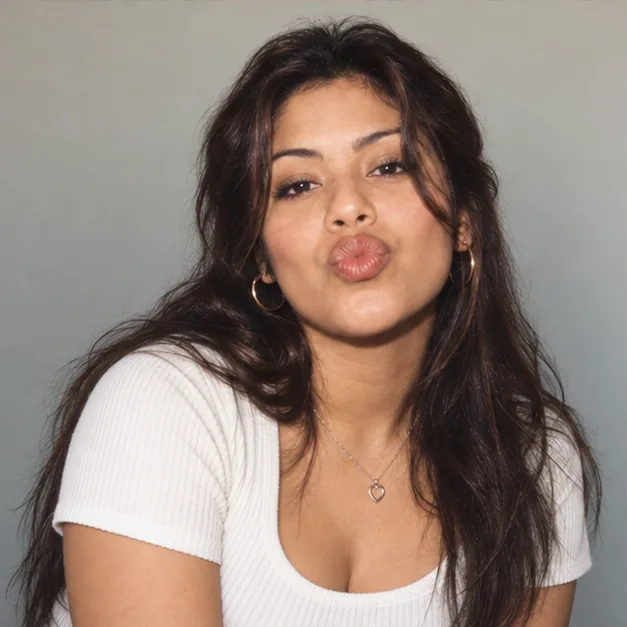
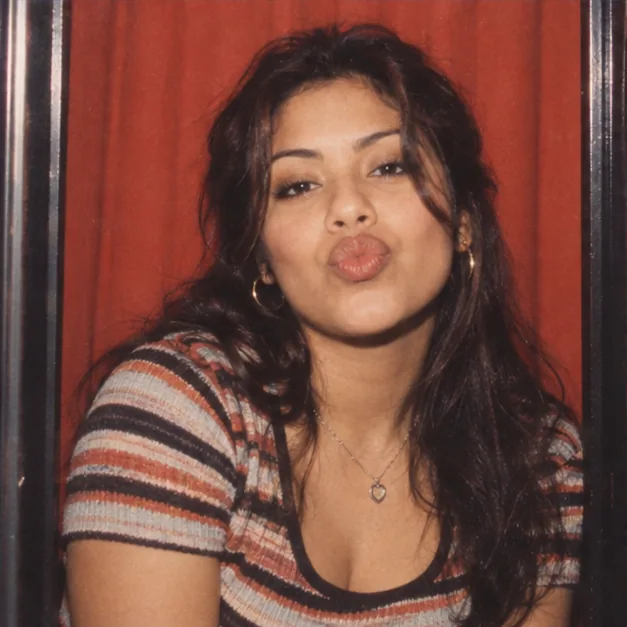
From a casual music-shop portrait to a sun-faded road trip, each direction changes the story around your face. New accounts receive 40 credits for 30 days, and the editor shows the cost before you generate.
Try another 90s look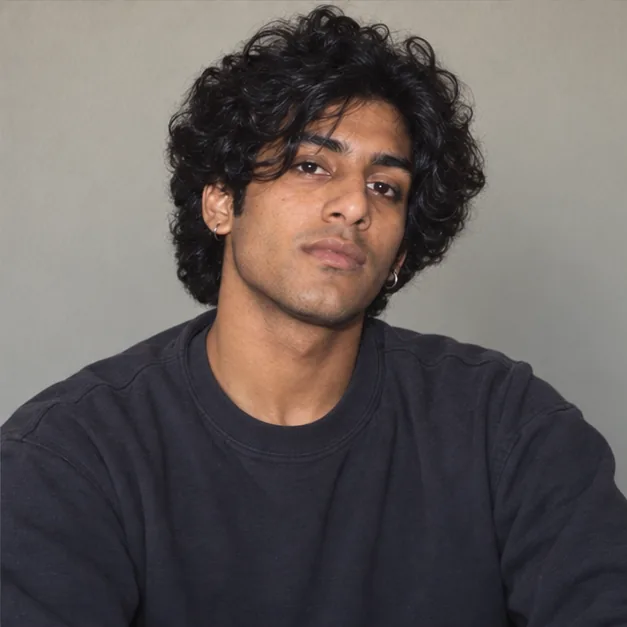
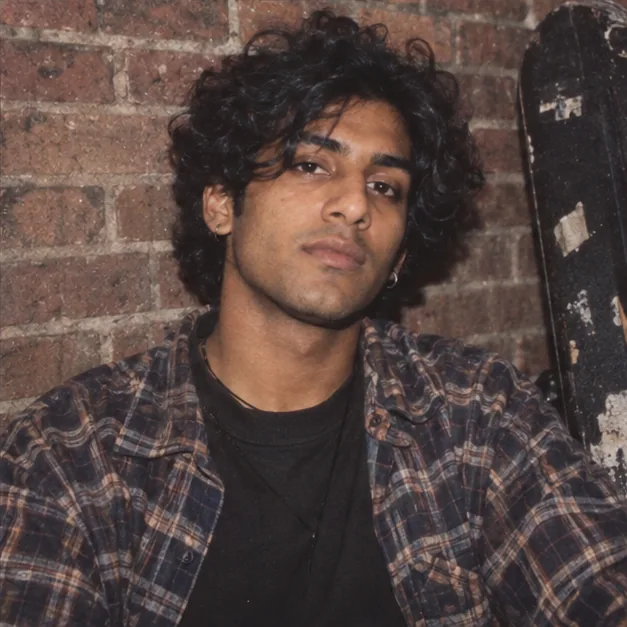
Upload one recent, clear portrait with a single visible face and even light. Your photo is the person reference for the result; a simple pose gives the model a clearer starting point.
Choose a scene such as Yearbook, House party, or Roller rink after uploading your portrait. Each card supplies a written 90s direction; its example picture is for browsing and is not sent as a second image.
Yes. Open Custom and write a short 1990s scene direction, such as a 1996 mall photo booth with direct flash and faded consumer film. A scene name, light, setting, and camera feel are useful details.
Open Custom and upload one style photo instead of a written direction. The first image remains your portrait; the second guides color, setting, wardrobe direction, lighting, and film-camera treatment. The model is asked not to copy a person from that photo.
Choose one direction at a time. The editor clears the other direction when you switch modes, and the service rejects a request containing both.
The workflow asks the model to preserve the recognizable person in your portrait. AI generation can still change facial details, hair, hands, clothing, or the background, so review each result before sharing it.
Yes. Keep your portrait and make separate generations with different scenes or Custom directions. Each run produces one image and uses the credit cost shown in the editor before you submit it.
No. Scene pictures illustrate the visual direction. A scene card sends its written description with your portrait; the model is asked to use the person in your upload.
The model can imitate visual cues such as direct flash, film grain, and faded color. It does not recover an actual historical photograph or guarantee period-perfect clothing, objects, or camera artifacts.
Choose an aspect ratio such as 4:5 for a portrait, 1:1 for a square image, or 3:2 for a camera-style frame. Resolution options are 1K, 2K, and 4K; the editor updates the credit cost when you change resolution.
Each submission requests one finished image. You can make another version with a new direction or different framing; each run has its own credit cost shown before you generate.
The result appears in Output when generation finishes. You can download it there or open My Creations later to revisit it.
Try a more specific Custom direction, change the scene, or use one style reference with clearer lighting and setting. Review the credit cost before generating another image.
Upload one photo, choose a scene or Custom direction, and create a single throwback image.
Start with my photoSelect a secure payment provider to continue.
Create amazing AI-generated videos and images
Create a new account with Google or GitHub to claim them. Unused credits expire 30 days after signup.
By continuing, you agree to the Terms of Service and Privacy Policy.