Prompt output
Edit your prompt or save the structured analysis.
Describing your imageYour request is processing…
Turn an image into a promptUpload an image and choose the detail level to get a description and JSON.
Suggested avoidances. Included as natural-language instructions when creating an image.
How Image to Prompt Generator works
Convert JPG, PNG or WebP images to prompts for GPT Image or Nano Banana. Try one analysis free, no login required. Edit and download TXT or JSON; further analyses use credits.
Detail level
Target model · GPT Image / Nano Banana
Concise Summary · Balanced Scene · Exhaustive Detail
STEP 02
Set the target model and depth
Choose Concise Summary, Balanced Scene or Exhaustive Detail, then select a GPT Image or Nano Banana model in Create with.
Choose detail
Image description
Subject and composition
Lighting, palette and materials
STEP 03
Describe the image
Choose Describe image to extract a recreation prompt, suggested avoidances and structured fields for the subject, environment, style, composition, lighting, colors, materials and camera view.
Start describing
Use the description
Edit · Copy · Download TXT / JSON
Create with your selected model
STEP 04
Copy or create from the prompt
Edit the Prompt, view Negative prompt or JSON, and Copy the selected format. Download TXT or JSON, or Create an image in Text to Image with your selected model and edited prompt.
View outputImage to prompt examples: portraits, artwork and JSON
Convert a reference image into an editable description of its subject, composition, lighting and materials. Choose a short or detailed prompt, save TXT or structured JSON, or continue in Text to Image with your selected model.
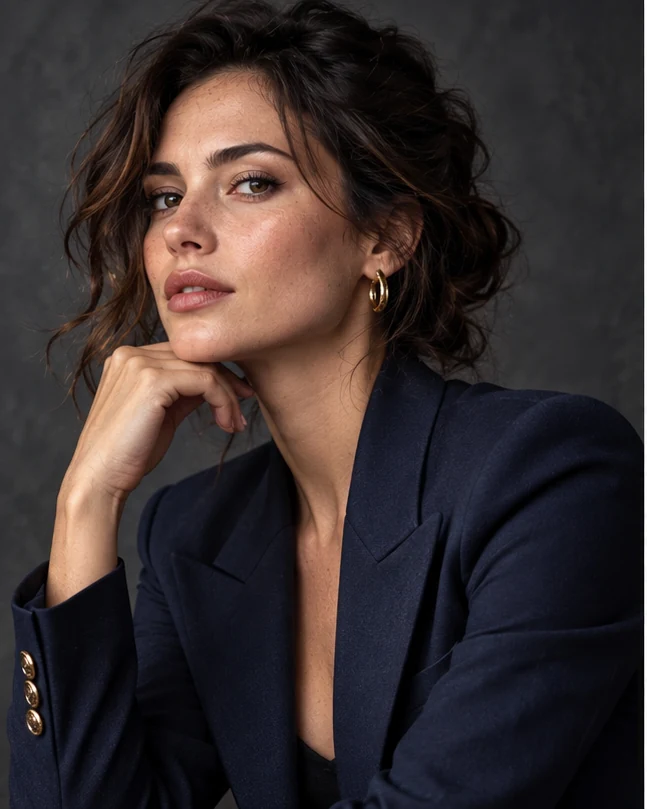
Turn a portrait photo into an AI image prompt
Upload a portrait and choose Balanced Scene to describe the person, clothing, framing and studio lighting. Select a GPT Image or Nano Banana model, edit the prompt, then open Text to Image with the description filled in. The analysis describes visible details rather than recovering the original prompt.
Try this direction
Extract a detailed prompt from digital artwork
Choose Exhaustive Detail for a cyberpunk avatar or illustration with complex lighting, materials and color. Copy the description and suggested avoidances, or save them as TXT. Edit those details to explore a new art direction while keeping the composition you want to describe.
Try this direction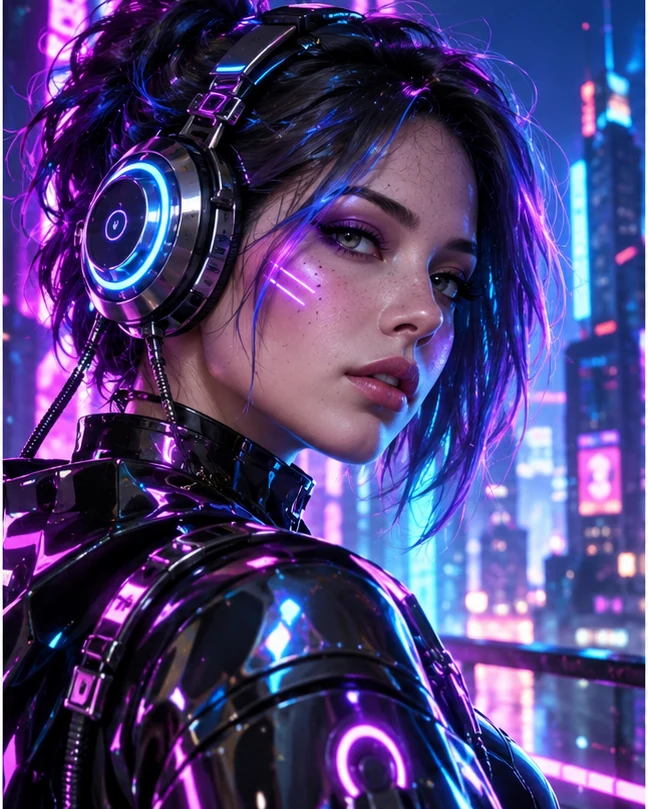
Convert a landscape image into a JSON prompt
Analyze the cottage, garden, golden-hour light and camera view as separate visual fields. The JSON record also includes your edited prompt, selected model, detail level and source dimensions. Open JSON and use Copy or Download JSON to keep the structured description with your edited prompt.
Try this direction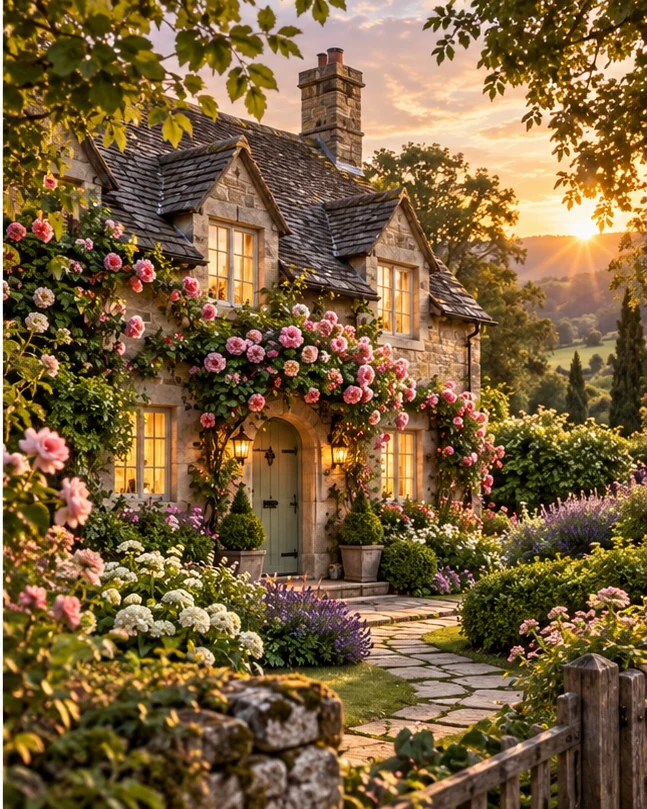
Image to Prompt Generator: questions and answers
Will the extracted prompt recreate the exact same image?
Image to Prompt Generator produces a new description of visible content. It does not recover the original prompt, seed or model settings, so using the description can produce a different image. Copy the prompt into your preferred generator or open Text to Image with it filled in.
What is the JSON prompt format used for?
The JSON tab displays a structured record containing your edited prompt, suggested negative prompt, target model, detail level and source dimensions. Visual fields cover subject, environment, style, composition, lighting, colors, materials and camera view. Unspecified details are left empty. Copy or download the record for a structured prompt workflow.
Which image models can I create with?
Choose from the GPT Image and Nano Banana models available in Imagine Scenes. Create an image opens Text to Image with your selected model and edited prompt. The tool uses natural-language instructions for these models, including suggested avoidances, without model-specific flags or a separate negative-prompt parameter.
Can I customize and download the extracted prompt?
Choose the target model and detail level. After analysis, edit the text in Prompt. Negative prompt and JSON display the suggested avoidances and structured record; Copy saves the selected format. Download TXT includes the prompt and suggested avoidances; Download JSON saves the structured record with your edits.
Does the analysis recover camera settings?
It describes visible viewpoint, framing and apparent depth of field. Exact focal length, aperture, film stock, render engine and original generation settings cannot be recovered from the image.
What image formats can I upload?
Upload JPEG, PNG or WebP up to 2 MB and 16 megapixels, within the site's image dimension limits. Choose Concise Summary, Balanced Scene or Exhaustive Detail and select Describe image. Guests can try one analysis free. Further analyses require sign-in and credits based on analysis token usage; generating a new image uses its own trial or credits.
Is image-to-prompt analysis free without a login?
Yes. Guests can complete one image analysis free without signing in. Failed analyses do not use the free try. Further analyses require sign-in and credits based on analysis token usage; the editor shows the maximum cost before submission and returns unused credits after settlement. Upload a JPEG, PNG or WebP image, choose the detail level and target model, and select Describe image. Copy the description or download TXT or JSON. Creating an image from that prompt is a separate generation with its own trial or credit cost.
Can I convert a photo into a Nano Banana or GPT Image prompt?
Yes. Choose an available Nano Banana or GPT Image model before analysis. The tool describes the photo's subject, scene, composition, lighting, colors and materials in natural language. Edit the result and choose Create an image to open Text to Image with that model and prompt, or copy the text for another workflow.
START CREATING
Image to Prompt Generator
Convert JPG, PNG or WebP images to prompts for GPT Image or Nano Banana. Try one analysis free, no login required. Edit and download TXT or JSON; further analyses use credits.
Upload a photo