Upload a portrait
Choose one clear, front-facing person in a JPG, PNG or WebP photo.
Upload a photoA portrait becomes a speaking performance.
Your portrait. Your words. One talking video.
Your recording is driving the performance.
FROM STILL TO SPEAKING
Choose one clear, front-facing person in a JPG, PNG or WebP photo.
Upload a photoType a short English script and create speech, or upload an MP3 or WAV recording. Listen to a clip up to 15 seconds.
Add audioChoose 720p or 1080p and optionally describe facial expressions and movement.
Set outputConfirm the credit estimate, generate, then play and download your video.
Start creating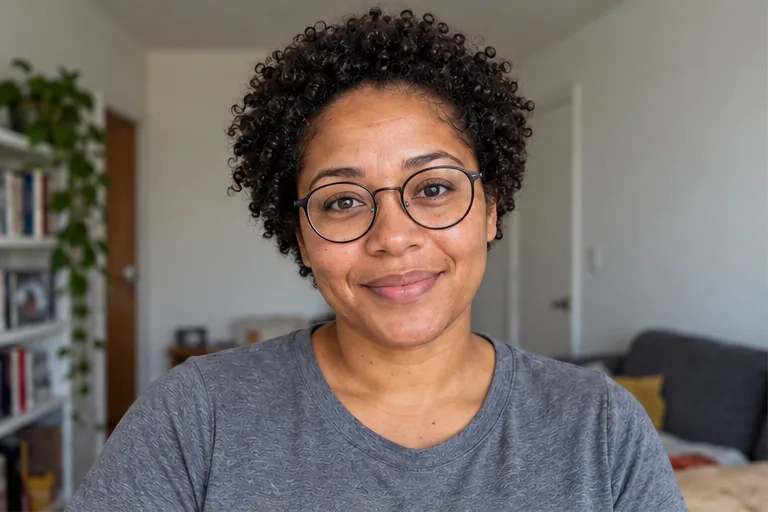
Hello, I’m Alex. Welcome to my creative workspace.
PERSONAL INTRODUCTIONS
Pair a portrait with a typed welcome or your own short recording for a profile, course introduction or team update. Choose an English AI voice for your script, or use a recording to keep your own voice and pacing.
Create an introduction Create a presenter portrait
Here’s how to get started in three simple steps.
SHORT EXPLANATIONS
Write or record one focused product explanation or lesson, then turn your portrait into a short presenter clip. Describe a calm delivery or small gestures without rewriting the spoken words.
Create a presenter clip Create an explainer scene
Hi there. Welcome to my channel.
RECORDED GREETINGS
Upload a new language version or a revised greeting while keeping your source portrait. Supply the finished spoken audio; this tool uses the recording as uploaded and does not translate it.
Create a greeting Animate a photo without speechFAQ
An AI talking photo generator turns a still portrait into a video of the person speaking, with lip movements and facial motion driven by audio. ImagineScenes AI Talking Photo accepts one portrait plus a typed script or an uploaded recording and produces one video up to 15 seconds at 720p or 1080p.
Upload a portrait, then choose Text to speech or Upload audio. For text, type a short English script, select a voice and create speech. For audio, upload an MP3 or WAV. Listen to the clip, choose an output resolution, check the credit estimate and generate your talking video.
Yes. The guest trial accepts up to 30 English characters with the Kore voice and speech up to 3 seconds. Sign in to enter up to 300 characters and choose Kore, Charon or Puck. Create speech and listen to the voiceover before generating the video. The finished speech must fit within 15 seconds. If it runs longer, shorten the script and create speech again.
Yes. Guests can upload an MP3 or WAV recording up to 3 seconds for the free 720p trial. Sign in to use a clip up to 15 seconds. Both accept files up to 10 MB. The recording supplies the voice, words and pacing. Listen to it in the editor before generating. Upload audio when you want your own delivery, accent or a voiceover prepared in another tool.
Yes. Make one talking photo video free without logging in or signing up. Upload a portrait and type up to 30 English characters for one free Kore voiceover, or upload an MP3 or WAV recording. Text and recordings share one free 720p video up to 3 seconds. Reuse your free voiceover; sign in to use new text or another voice. Failed speech can be retried up to three attempts, or use a recording. Failed generations do not use the free try. Longer text or audio up to 15 seconds, other voices, 1080p and further generations require sign-in. Signed-in video generations use credits; new speech generation is billed separately, with up to 20 credits reserved and unused credits returned after usage-based settlement. Reusing completed speech adds no charge.
Video cost follows the verified audio duration, rounded up to whole seconds: a 5-second clip costs 338 credits and a 15-second clip costs 1,013 credits. The current rate is the same for 720p and 1080p. Signed-in text to speech is billed separately from video. Up to 20 credits are reserved for each new voiceover, then unused credits are returned after usage-based settlement. Reusing completed speech adds no charge.
Use a clear, front-facing portrait of one person, with the face and mouth visible. Upload JPG, PNG or WebP up to 10 MB, with both sides at least 300 pixels. Avoid a covered mouth, heavy blur or several faces. The portrait guides the subject and framing of the talking video.
The free guest try supports short text (up to 30 English characters with the Kore voice) or one uploaded recording, producing a video up to 3 seconds at 720p. Signed-in AI Talking Photo supports clips up to 15 seconds. Video duration follows the audio rather than a separate duration setting. A typed script can contain up to 300 characters, but its generated speech must also fit within 15 seconds. Split a longer narration into separate short clips.
Built-in text-to-speech voices are for English scripts. For another language, upload a finished spoken MP3 or WAV: up to 3 seconds for the free guest trial, or up to 15 seconds after signing in. The tool uses that recording as supplied; it does not translate the script or audio. Use your recording to check pronunciation and pacing before making the video.
No. Text to speech uses the selected English AI voice; the portrait does not determine the speaker's voice. To make the photo speak in your own voice, upload your own recording. The tool does not clone a voice or create new spoken words from a voice sample.
The spoken audio drives lip synchronization and speech timing. Use the optional Movement field to guide expressions, posture and gestures, such as a gentle smile or subtle head movement. Movement text is separate from the spoken script: it directs the performance and does not replace the words in the audio.
Yes. When your video finishes, play it in Output and download the MP4 for use in your video workflow. Choose 720p or 1080p before generating. The source portrait guides framing; this editor has no separate aspect-ratio or crop control. It does not add captions, so add subtitles in your publishing editor if needed.
Talking Photo focuses on a portrait speaking to a supplied voice track, with synchronized lips and audio-based duration. Image to Video animates a broader scene from an image and motion prompt. Use Talking Photo for a greeting or presenter; choose Image to Video for scenery, product motion or camera movement.
AI Talking Photo uses one audio clip as the soundtrack and does not mix a second music track or add subtitles. For a spoken presenter, use a clear single-speaker recording or the built-in text-to-speech voiceover. Download the completed MP4, then add music or captions in your video editor.
Select a secure payment provider to continue.
Sign in with Google or GitHub to generate and access your saved creations.
Create a new account with Google or GitHub to claim them. Unused credits expire 30 days after signup.
By continuing, you agree to the Terms of Service and Privacy Policy.